Gaming can be fun for kids, but it also comes with risks like inappropriate content, cyberbullying, and unwanted interactions. Parental controls help you manage your child’s gaming experience by setting boundaries around content, screen time, spending, and communication. Here’s what you need to know:
- Content Filtering: Block games based on age ratings like E (Everyone) or M (Mature).
- Screen Time Limits: Set daily or weekly playtime schedules to balance gaming with other activities.
- Purchase Controls: Require approval for in-game purchases to avoid unexpected charges.
- Communication Restrictions: Limit or disable chat and voice features to control who your child interacts with.
- Privacy Settings: Protect personal information by managing profile visibility and friend requests.
Platforms like PlayStation, Xbox, and Nintendo Switch offer specific tools for parental controls. Additionally, teaching digital safety and encouraging open communication with your child enhances their online experience. By combining technical controls with regular involvement, you can create a safer and healthier gaming environment.
Table of Contents
Worried about your child and too much technology? | Motivational Video for Parents
How Parental Controls for Gaming Work: Key Features
Parental controls for gaming act as a digital safety net, giving you the tools to shape your child’s gaming experience. They help you set boundaries, manage content, and ensure that gaming stays both fun and secure. Here’s a breakdown of the key features that make parental controls so effective.
Main Parental Control Functions
Content Filtering
This feature lets you block games and content that aren’t appropriate for your child’s age. By using ESRB ratings like E (Everyone), T (Teen), or M (Mature), you can tailor restrictions to match what works best for your family.
Screen Time Management
Set daily or weekly limits to keep gaming in check. You can define specific hours for play and block access during off-limits times. This helps your child maintain a healthy balance between gaming and other activities.
Purchase Controls
Worried about surprise charges? Purchase controls require your approval for in-game purchases or downloads. You can even set spending limits, ensuring that every transaction has your oversight.
Communication Restrictions
Control who your child interacts with during online play. You can disable chat and voice functions entirely or limit them to approved contacts, reducing the risk of harmful interactions.
Friend and Contact Management
Some systems let you review and approve friend requests before they’re accepted. This ensures your child only connects with people you’ve vetted, creating a safer online space.
These features are built on basic gaming safety principles, which can help you make the most of parental controls.
Basic Gaming Safety Concepts
Understanding a few key concepts can make it easier to use parental controls effectively.
Age Rating Systems
ESRB ratings provide clear guidelines on what content to block. They include detailed descriptors like “Mild Violence” or “Simulated Gambling” to help you make informed decisions.
Account Hierarchy
Gaming platforms often separate parent and child accounts. Parent accounts have full control, while child accounts come with preset restrictions. This setup ensures that privacy settings or spending limits can’t be changed without your approval.
Privacy Settings
These settings control what personal information your child shares online. You can manage profile visibility and control whether game activity is broadcast, helping protect your child’s privacy.
Password Protection
A secure PIN or password is essential for accessing and managing parental controls. This added layer of security ensures that your settings remain unchanged without your consent.
Platform-Specific Features
Each gaming system offers its own set of parental control tools. Taking the time to explore the features on your child’s preferred platforms can help you provide consistent protection across all devices.
How to Set Up Parental Controls for Gaming: Step-by-Step Guide
Parental controls for gaming differ depending on the platform, but the general process is similar. Here’s a guide for setting up controls on some of the most commonly used systems.
Setting Up Parental Controls on Gaming Consoles
PlayStation 5 and PlayStation 4
Start by creating a family account through the PlayStation Network. Navigate to Settings > Family and Parental Controls > Family Management on your console. Set up a master account and add your child as a family member with their own sub-account.
Once the accounts are linked, you can manage spending limits by going to Account Management > Account Information > Wallet. To restrict content, head to Parental Controls > Age Level for Games. For example, you can block M-rated games while still allowing E or T-rated content.
Privacy Settings
Under Privacy Settings, you can disable voice chat entirely or limit it to friends only. To manage screen time, use the Play Time Settings menu to set daily play limits and specify gaming hours.
Xbox Series X/S and Xbox One
Microsoft Family Safety makes it easy to manage parental controls on Xbox. Begin by creating a family group at account.microsoft.com/family, then add your child’s account and apply age-appropriate settings.
You can adjust these settings through the Xbox Family Settings app on your phone or directly on the console. Under Content Filters, block games based on ESRB ratings and restrict access to user-generated content. The Screen Time section allows you to set daily limits and designate specific hours for gaming.
Purchase Controls
Enable purchase controls to require approval for any spending. This can be found under Spending in the family settings, where you’ll also receive notifications for purchase requests. Xbox also provides activity reports showing which games were played and for how long.
Nintendo Switch
To manage parental controls on the Nintendo Switch, download the Nintendo Switch Parental Controls app and create a Nintendo account. Link the app to your console using the registration code found under System Settings > Parental Controls.
The app offers a variety of options for controlling your child’s gaming habits. You can set play time limits, customize them for weekdays and weekends, and choose whether to display warnings or automatically suspend gameplay. Use content restrictions to block games by age rating, limit communication features, and even set bedtime alarms to remind your child when it’s time to stop playing.
These tools work alongside parental controls available within individual games for a well-rounded approach to managing your child’s gaming experience.
Setting Up Parental Controls for Popular Online Games
Many popular online games include their own parental control settings, though the options can vary. These controls often let you limit in-game spending, restrict communication features, or manage multiplayer interactions. To ensure a safer gaming environment, regularly check each game’s official safety policies and parental control features. This helps you stay up-to-date on the best ways to protect your child while they play.
Best Practices for Safe and Healthy Gaming
Parental controls are just the beginning. Creating a safe and healthy gaming environment requires ongoing effort, open communication, and teaching your kids how to navigate the digital world responsibly. These steps go beyond technical controls, offering a well-rounded approach to ensure your child’s gaming experience remains positive and secure.
Regular Monitoring and Communication
Check settings regularly to make sure they’re functioning properly. Gaming platforms often roll out updates that can reset or alter your parental control configurations. A monthly review ensures everything is still working as intended.
Talk about their gaming experiences. Ask specific questions like, “Who did you play with today?” or “Did anything happen during the game that made you uncomfortable?” These conversations not only help you stay informed but also show your child that you care about their online activities.
Review activity reports and spending alerts to get a clearer picture of their gaming habits. For example, Xbox Family Safety sends weekly summaries showing which games were played, for how long, and any attempts to access restricted content. PlayStation offers similar tools. Use this information as a conversation starter to discuss gaming choices and financial responsibility, rather than as a way to catch them off guard.
Stay up-to-date on new games your child wants to play. The ESRB website provides detailed content descriptions that go beyond age ratings. A T-rated game might have mild violence that’s acceptable for your family, while another could include themes you’d prefer to avoid. Understanding these details helps you make informed decisions.
Create tech-free zones and times to encourage family interaction and set healthy boundaries. For example, keep gaming out of bedrooms or off the dinner table, and set specific hours when screens are turned off. This ensures gaming doesn’t interfere with homework, sleep, or quality family time.
Once you’ve established consistent oversight, take it a step further by teaching your child how to be a responsible digital citizen.
Teaching Digital Citizenship
Explain the lasting impact of online actions. Help your child understand that screenshots and shared content can make their behavior permanent. Their reputation in gaming communities can follow them across platforms, and what they say or do today could have consequences down the road.
Show them how to recognize and report inappropriate behavior. Teach them where the report buttons are in their favorite games and explain that reporting isn’t “tattling” – it’s about keeping the community safe. Practice scenarios involving bullying, inappropriate language, or requests for personal information so they feel prepared to act.
Protecting Personal Details
Emphasize the importance of protecting personal details. Go beyond the basics of not sharing their real name. Explain why they should avoid mentioning their school, sports teams, or even the city they live in. Small details can add up and be used by those with harmful intentions.
Teach them to be cautious about online identities. Some people pretend to be kids or teenagers to gain trust. Let your child know that real friends won’t ask them to keep secrets from parents or move conversations to private platforms.
Be a role model for good digital behavior. Kids learn by watching. Show them how you handle frustrations in online games, treat others with respect, and balance screen time with other activities. This sets a strong example for them to follow.
Communication and Privacy Settings
Encourage thoughtful communication. Introduce the “grandma test”: Would they feel comfortable if their grandmother heard what they’re about to say? This simple rule helps them think before they type or speak, fostering self-control and positive interactions.
Teach them about privacy settings. Walk them through how friend requests work and explain why they should only accept requests from people they know in real life. Show them how to adjust their gaming profiles to limit the amount of personal information visible to others.
Combining robust parental controls with lessons in digital citizenship creates a comprehensive safety net for your child’s online gaming. It takes patience and consistency, but these efforts help your child enjoy gaming securely while building skills that will benefit them in all areas of their digital life.
Combining Coding and Digital Literacy with Gaming
Gaming can be more than just a way to pass the time. By weaving coding education into safe gaming practices, screen time can shift from mere entertainment to a chance to build valuable skills. This combination not only sharpens technical abilities but also reinforces key digital safety concepts. Kids gain a deeper understanding of how games function behind the scenes, helping them become more thoughtful participants in the digital world. It’s a way to blend learning with play, creating enriching online experiences.
Turning Screen Time into Learning Time
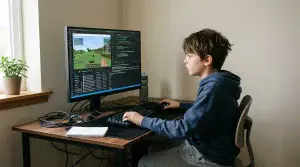
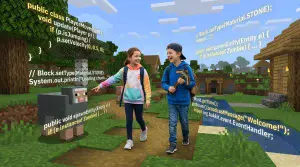
Game-based coding platforms bring together fun and education by teaching programming in familiar gaming settings. Take CodaKid, for instance – it uses popular games like Minecraft and Roblox as tools to teach kids how to create mods, build games, and work on AI projects. These lessons incorporate widely-used coding languages, the same ones employed by tech giants like Google and Intel.
Kids learn by customizing games they already love. Instead of just playing Minecraft, they dive into modifying it through coding. This hands-on approach transforms abstract programming ideas into real-world skills.
CodaKid offers flexible learning options like self-paced courses, private lessons, and virtual camps. Professional support is readily available to help with setup, answer questions, and guide students through challenges – making it accessible even for parents who aren’t familiar with coding.

As kids advance, they’re not just learning to code; they’re building actual games and software that mirror professional standards. Along the way, this experience sparks discussions about digital responsibility and ethical design, helping kids think critically about the technology they create and use.
Benefits of Game-Based Coding Education
Learning game mechanics sharpens critical thinking. By exploring how games handle features and systems, kids develop insights that can help them navigate digital spaces more wisely.
Programming skills enhance digital safety awareness. Understanding how software operates gives kids the tools to make smarter choices about privacy settings and app permissions.
Problem-solving through coding builds confidence. Tackling technical challenges and debugging code encourages persistence and analytical thinking – skills that are valuable in many areas of life. These lessons not only enhance learning but also contribute to creating a safer online experience.
Parents report that CodaKid’s interactive approach excites kids and deepens their understanding of technology.
Technical skills promote better online safety habits. By learning how websites manage data and user accounts, kids become more cautious about sharing personal information online.
The benefits extend well into the future. Combining technical knowledge with digital citizenship equips kids to be informed digital users while empowering them to become creators who understand both the opportunities and the responsibilities of technology.
This approach works best when parents stay engaged – asking about projects, celebrating milestones, and showing interest in what their kids are learning. The goal isn’t to eliminate traditional gaming but to ensure that some screen time contributes to skill-building and reinforces important lessons about staying safe and responsible online.
Conclusion: Creating a Safer Gaming Environment
Parental controls are a great starting point for ensuring a secure gaming experience, but they work best when paired with active involvement and open communication. These tools are most effective when parents remain engaged and stay informed about their children’s online activities.
Your role goes beyond just setting up technical safeguards. Taking an interest in your child’s gaming adventures, celebrating their achievements, and having regular conversations about their online experiences can build trust and create a safer environment. This proactive approach not only helps you identify potential problems early but also promotes healthy gaming habits. Regularly reviewing and adjusting your settings ensures they stay relevant and effective over time.
On top of that, combining parental controls with educational initiatives can take things to the next level. For instance, research shows that learning to code can improve logical thinking and problem-solving abilities by 70%. Platforms like CodaKid turn gaming into an active learning experience by teaching programming through popular games like Minecraft and Roblox. This not only equips kids with valuable technical skills but also reinforces important concepts around responsible digital behavior. By integrating coding, gaming evolves from just a pastime into an opportunity for growth and skill development.
FAQs (Parental Controls for Gaming)
How can I set parental controls for gaming while teaching my child to be responsible online?
Balancing parental controls with teaching kids to be responsible online begins with open and honest communication. Establish clear family guidelines for gaming and online behavior, and take the time to explain why these rules matter. Regularly discuss topics like online safety, privacy, and respectful interactions, creating a space where your child feels safe sharing any concerns or questions with you.
Think of parental controls as a helping hand, not a replacement for these important conversations. They can provide a secure framework while your child gains the skills to navigate the digital world responsibly. Gradually, encourage them to make thoughtful choices and embrace good digital habits on their own.
What parental control features are available on gaming consoles like PlayStation, Xbox, and Nintendo Switch?
Gaming consoles such as PlayStation, Xbox, and Nintendo Switch come equipped with parental control features designed to help you oversee your child’s gaming habits. These tools let you manage content access, regulate online interactions, and set limits on screen time.
On PlayStation, you can adjust settings to restrict games by age ratings, cap spending, and turn off chat functions. Xbox provides options to set screen time limits, block unsuitable websites, and track activity through detailed reports. Meanwhile, the Nintendo Switch pairs with a Parental Controls app, allowing you to enforce playtime limits, restrict purchases, and block games with certain ratings.
By setting up these controls, you can create a gaming environment that’s safer and more suited to your child’s age.
How can teaching coding through gaming improve my child’s safety and learning online?
Teaching your child coding through gaming offers more than just tech skills – it equips them with problem-solving abilities, critical thinking, and a better grasp of how digital platforms operate. These skills can boost their confidence and help them navigate online spaces more safely and responsibly.
Platforms like CodaKid turn coding into an exciting experience by using game-based learning. This method not only makes learning enjoyable but also encourages creativity and original thinking, providing kids with a secure and meaningful way to explore the digital world.