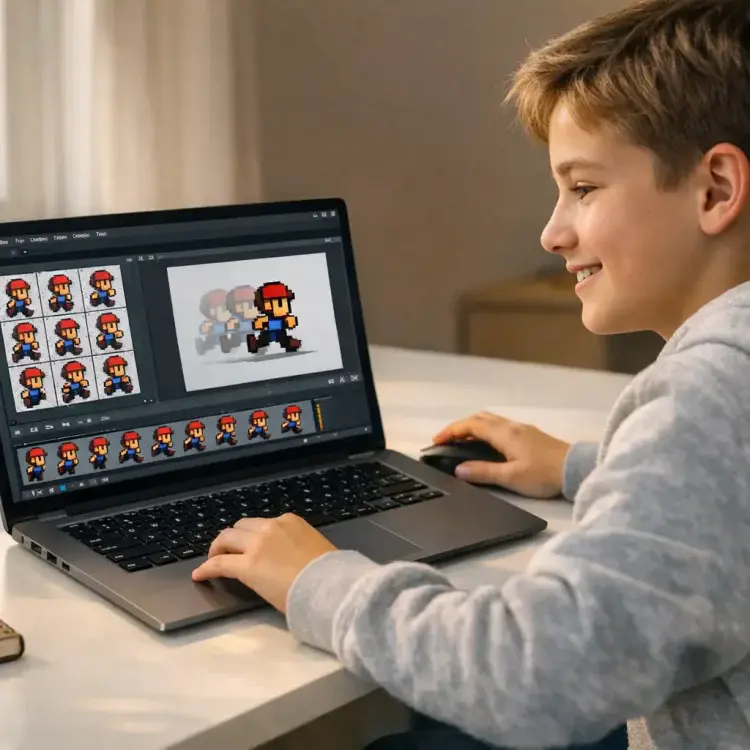
Sprite animation is a key element in 2D game development, bringing characters and objects to life through sequences of images. In Python, this process becomes accessible and efficient with the Pygame library, which simplifies tasks like frame updates, sprite movement, and animation control. Here’s what you’ll learn:
- What sprites are: 2D images or animations used in games, often managed via sprite sheets for better performance.
- Why Python is ideal: Pygame’s straightforward tools make it beginner-friendly and cross-platform compatible.
- How to create animations: From setting up Python and Pygame to designing sprite classes, extracting frames, and managing animation speed.
- Key techniques: State-based animations, movement handling, and troubleshooting issues like flickering or transparency.
Table of Contents
Best Coding Curriculum for Kids & Teens (2026 Roadmap): Roblox, Minecraft, Python, AI
Setting Up Your Environment (Sprite Animation with Python)
Before jumping into sprite animation, you’ll need to install Python and Pygame. Once these are ready, you’ll be coding in no time.
Installing Python and Pygame
First, download Python 3.7 or later from the official website: python.org. Newer versions come with improved performance and features that are especially helpful for beginners. If you’re on Windows, make sure to check the box that says “Add Python to PATH” during installation – this will save you some setup headaches later.
After installing Python, open your terminal (Command Prompt on Windows, Terminal on macOS/Linux) and type the following command to install Pygame:
pip install pygame
The installation process is quick, usually under a minute. To confirm that everything is working, try running one of Pygame’s example games:
python3 -m pygame.examples.aliens
If the game launches, you’re good to go! For those juggling multiple projects, it’s a good idea to use a virtual environment to keep your Pygame installation isolated. You can create one with:
python -m venv myenv
When it comes to writing your code, you can use any text editor, but IDEs like PyCharm or Visual Studio Code are great because they offer debugging tools and error detection.
Setting up your environment properly ensures smoother sprite animations and an overall better game development experience.
Basic Pygame Structure
With Python and Pygame installed, you’re ready to lay the groundwork for game programming. Start by importing Pygame and initializing it with pygame.init(). This step ensures all required modules are ready to interact with your system. Next, create a game window using pygame.display.set_mode((width, height)). For instance, pygame.display.set_mode((800, 600)) creates an 800×600 pixel game window.
The core of your game is the game loop – a while loop that handles three main tasks for each frame:
- Processing user input with
pygame.event.get() - Updating the game state, such as sprite positions and animations
- Rendering everything on the screen
To maintain smooth animations, use pygame.time.Clock() and limit the frame rate to 60 FPS with clock.tick(60).
Here’s a quick rundown of some essential Pygame commands:
| Command | Purpose |
|---|---|
pygame.init() | Prepares all Pygame modules for use |
pygame.display.set_mode() | Sets up the game window or canvas |
pygame.event.get() | Fetches user input events (like key presses) |
pygame.display.flip() | Updates the entire display surface to the screen |
clock.tick(60) | Caps the frame rate at 60 FPS for smooth gameplay |
When working with sprite images, use the .convert_alpha() method for any images that include transparency. This step boosts rendering performance. To keep things organized, store your sprite files in an assets/ folder inside your project directory – this helps avoid path-related issues.
Finally, don’t forget to include pygame.quit() at the end of your program. This ensures Pygame shuts down properly and releases system resources once your game ends.
Creating and Preparing Sprite Sheets (Sprite Animation with Python)
What Are Sprite Sheets?
A sprite sheet is a single image file that contains multiple smaller images, or frames, arranged in a grid or a horizontal strip. This method is much faster and uses less memory compared to handling separate image files for each frame. As Eric Matthes, author of Python Crash Course, puts it:
Game developers realized a long time ago that loading many images from separate files causes a game to run really slowly, so people came up with the idea of sprite sheets.
In this Pygame tutorial, you can learn how to extract frames by specifying a rectangular region (x, y, width, height) and creating a subsurface from the main image. To improve rendering speed, use the .convert() method after loading, which can increase performance up to six times. For sprites with transparent areas, .convert_alpha() is ideal as it preserves transparency.
Designing or Finding Sprites
If you’re just getting started, free sprite resources can save you a lot of time. Websites like OpenGameArt.org offer excellent assets, including Kenney’s “Platformer Art Deluxe” package, which features multiple animation frames and tiles for environments. Other beginner-friendly sources include itch.io and Public Domain Clip Art. These platforms provide pre-made sprite sheets, so you can focus on coding instead of creating art from scratch.
For those looking to create custom sprites, general drawing tools or specialized software like the Tiled Map Editor are great options. When designing your own sprite sheets, ensure that all frames have consistent dimensions and leave a 1-pixel clear border around each frame. This prevents “bleeding”, where parts of adjacent frames accidentally show up during scaling. To stay organized, save your sprite sheets in a dedicated folder like assets/sprites/ to avoid file path headaches.
Extracting Frames from Sprite Sheets
Once you have your sprite sheet ready, the next step is precise frame extraction, which is essential for smooth animations. Open the sprite sheet in an image editor and use the selection tool to measure the dimensions of a single frame. With the frame width and height determined, calculate the position of each frame by multiplying these dimensions across the grid.
In Pygame, use the subsurface() method to extract frames. This method creates a reference to a specific portion of the original image rather than duplicating it, saving memory. Define each frame using pygame.Rect(x, y, width, height) and iterate through the grid to extract and store each frame in a list. For optimal performance and to maintain transparency, always apply .convert_alpha() immediately after loading your sprite sheet.
| Feature | Sprite Sheets | Individual Image Files |
|---|---|---|
| Loading Speed | High (one file access) | Low (multiple disk reads) |
| Organization | Consolidated into one file | Scattered across many files |
| Complexity | Requires extraction math | Simpler direct loading |
Building a Sprite Animation Class
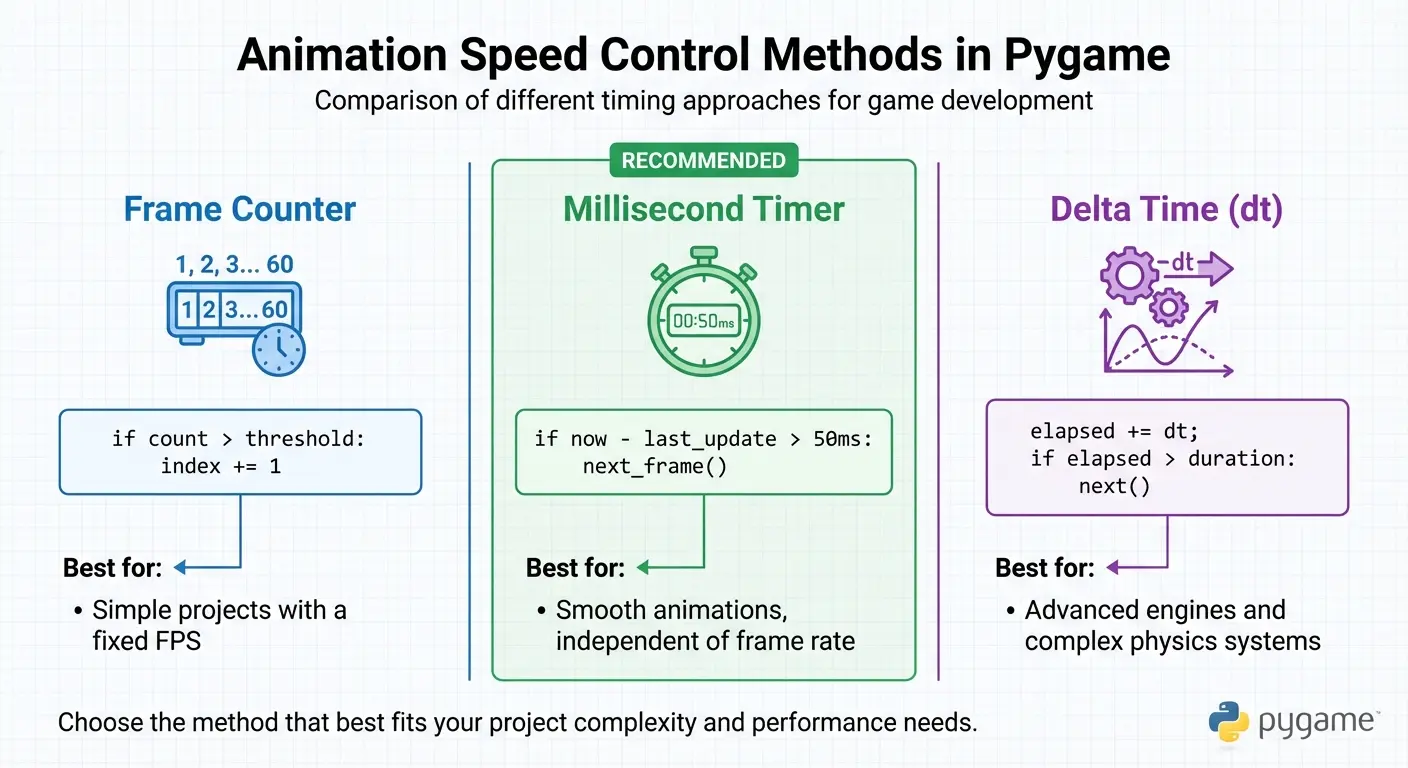
Sprite Animation Speed Control Methods Comparison
Setting Up the Animation Class
To control sprite animations effectively, as taught in self-paced online coding classes, you’ll need two classes: an Animation class for managing sequence and timing, and an AnimatedSprite class (which inherits from pygame.sprite.Sprite) for visual representation and integration.
The AnimatedSprite class should include several key attributes:
- A
frameslist to hold your PygameSurfaceobjects (the individual animation frames). - A
current_frameinteger to track which frame is currently displayed. - An
imagevariable to represent the currently displayed frame. - A
rectobject to determine the sprite’s position on the screen.
To handle timing, include variables like last_update (to store the time of the last frame change) and frame_duration (to set how long each frame is displayed). These ensure smooth frame progression.
The update() method will handle frame updates. Use pygame.time.get_ticks() to get the current time in milliseconds and compare it with last_update. When enough time has passed, increment current_frame. To loop the animation, apply the modulo operator (current_frame % len(frames)), which resets the frame index once it reaches the end of the list.
For optimal performance and transparency, always use .convert_alpha() when loading sprite images. If your sprite frames vary in size, store the rect.center before changing the image, and reapply it afterward. This avoids misalignment during updates. Additionally, when applying transformations like rotation or scaling, use an image_orig attribute to preserve the original image. This prevents quality loss caused by repeated modifications.
Once your sprite animation class is ready, the next step is to fine-tune the timing and speed for smooth animations that aren’t tied to the frame rate.
Controlling Animation Speed
To ensure animations run smoothly on all hardware, their speed should be independent of the game’s frame rate. Use pygame.time.get_ticks() or pass a delta time (dt) to calculate how much time has passed and adjust frame updates accordingly. For example, if you want an animation to run at 12 FPS, each frame should display for approximately 83 milliseconds (calculated as 1000 ms ÷ 12 FPS).
Here are some common methods for managing animation speed:
| Method | Implementation | Best For |
|---|---|---|
| Frame Counter | if count > threshold: index += 1 | Simple projects with a fixed FPS |
| Millisecond Timer | if now - last_update > 50ms: next_frame() | Smooth animations, independent of frame rate |
| Delta Time (dt) | elapsed += dt; if elapsed > duration: next() | Advanced engines and complex physics systems |
When switching between animation states (e.g., from “idle” to “walk”), reset both current_frame and any accumulated time (like elapsed_time) to zero. This ensures the new animation starts from the beginning without glitches.
Finally, pre-load all animation frames during your class’s initialization. Loading images during the game loop can cause severe frame rate drops, so avoid it at all costs. This preparation will help maintain a smooth and responsive gameplay experience.
Adding Movement and Interactive Animations (Sprite Animation with Python)
Moving Sprites Across the Screen
In Pygame, movement is all about creating an illusion. You “move” a sprite by erasing its old position (usually by redrawing the background) and then redrawing it in a new spot. Pete Shinners, the creator of Pygame, describes it perfectly:
Blitting an image simply updates pixel colors, creating the illusion of movement through rapid redrawing.
The pygame.Rect object tied to your sprite makes this process easier. It manages the sprite’s position and gives you handy attributes like .top, .bottom, .left, and .right for movement and boundary checks. To move your sprite, just adjust its position by adding or subtracting a velocity value. For example, player.rect.x += 5 shifts the sprite five pixels to the right.
For smooth movement, skip the standard event queue and use pygame.key.get_pressed(). This function checks which keys are held down, allowing continuous, fluid motion. To keep sprites from wandering off-screen, set boundary conditions like if player.rect.right > WINDOW_WIDTH: player.rect.right = WINDOW_WIDTH.
To keep things tidy, create a redrawGameWindow() function. This function should handle redrawing the background and all sprites in one place. For consistent movement speed, regardless of frame rate, incorporate delta time (dt) into your calculations.
Once your movement is running smoothly, you can take it further by introducing animations that react to the sprite’s state.
State-Based Animations
If your sprite animation class already updates frames, it’s easy to enhance it by adding state-based animations. This feature allows your characters to adapt dynamically to user input. Start by storing animation sequences in a dictionary within your sprite class, like this: self.animations = {'idle': [frame1, frame2], 'walk': [frame3, frame4]}.
Add a set_animation(state_name) method to switch between animations. Be sure to reset the frame index to zero when changing states – this ensures the new animation starts cleanly, without skipping or flickering. Use pygame.key.get_pressed() for continuous actions (like walking) and pygame.event.get() for one-time actions (like jumping).
Instead of loading separate images for left and right movement, use pygame.transform.flip(image, True, False) to mirror your right-facing frames horizontally. This trick reduces the number of images you need to load.
To handle multiple sprites efficiently, take advantage of pygame.sprite.Group(). This lets you call update() and draw() on all your sprites at once. It’s a great way to keep your main game loop clean while making it easier to add new characters or enemies.
Troubleshooting and Common Mistakes (Sprite Animation with Python)
After creating your sprite animations, you might encounter some challenges that can affect both performance and visual quality. Let’s dive into some frequent mistakes and ways to troubleshoot them.
Common Mistakes in Sprite Animation
Transparency issues can be a major headache, especially for those just starting coding for kids. If your sprites are surrounded by solid boxes instead of transparent backgrounds, it’s likely because the alpha channel isn’t being preserved. Make sure to use .convert_alpha() when loading your images to fix this.
Animation speed problems often arise when frame rate isn’t properly managed. Without tools like pygame.time.Clock().tick() or Delta Time (dt), your animations will behave inconsistently across different devices. What runs smoothly on your computer might be ridiculously fast on someone else’s. Also, advancing frames on every game loop can make animations zip by too quickly to be seen. A better approach is to use pygame.time.get_ticks() to track elapsed time and only advance frames after a set interval – like 100 milliseconds.
Rotating sprites introduces two common issues. First, if you repeatedly rotate the same image, you’ll notice pixel degradation over time. To avoid this, always keep an original, unrotated version (e.g., self.image_orig) and perform all rotations on that copy. Second, rotation changes the size of your sprite’s bounding box (rect), which can lead to odd positioning. Always recalculate and re-center the rect after each rotation to keep your sprite stable.
Initialization errors in custom sprite classes can disrupt Pygame’s built-in functionality. Every sprite class must call pygame.sprite.Sprite.__init__(self) or super().__init__() and define both self.image and self.rect. Without these, the core systems won’t work properly. As mentioned earlier, proper initialization and consistent frame timing are essential to avoid these pitfalls.
Debugging Tips for Beginners
One of the easiest ways to debug is through visual feedback. For example, you can draw red rectangles around your sprites using pygame.draw.rect(screen, (255, 0, 0), sprite.rect, 2). This helps you check if collision areas and positions are where they should be. You can also display the current FPS or sprite coordinates on the screen to monitor performance in real time.
Print statements or Python’s logging module are invaluable for tracking key metrics like rect.x, rect.y, or the current frame index. This real-time data can help you pinpoint where things are going wrong.
When loading images, always wrap the code in a try-except block to catch pygame.error. This way, you can quickly identify missing or corrupted file paths before your game crashes. It’s a simple trick that saves you hours of searching for typos in file names.
Testing frequently is another great habit. Make small changes to your animation code and test them immediately. Debugging a few lines is far easier than trying to untangle a massive block of code all at once.
Finally, use the modulo operator (%) when cycling through frames. For example, current_frame = (current_frame + 1) % total_frames ensures a smooth loop without running into index-out-of-range errors. Just remember to reset frame indices when switching animation states to avoid starting mid-sequence.
Conclusion and Next Steps (Sprite Animation with Python)
You’ve now delved into the essentials of sprite animation in Python. From setting up Pygame and loading sprite sheets to creating animation classes and troubleshooting, you’ve seen how these skills breathe life into game elements. Let’s recap the highlights and consider where to go from here.
Key Takeaways
Before diving into advanced techniques, it’s crucial to have a solid grasp of the basics:
- Install Pygame with
pip install pygameand initialize it usingpygame.init(). - Ensure your sprite classes inherit from
pygame.sprite.Spriteand handle their images and rects correctly. - Use
convert()for non-transparent images andconvert_alpha()for images with transparency to boost performance. - Maintain a consistent game loop to manage events, update states, and render scenes seamlessly.
- Control animation timing with
pygame.time.get_ticks()or delta time for smooth playback across devices.
Expanding Your Skills
Once you’re comfortable with the fundamentals, it’s time to explore more advanced techniques. For example, state-based animations can allow your sprites to transition between “idle”, “walk”, and “jump” states based on player input. Collision detection can add depth to your games – try pygame.sprite.collide_rect() for simple checks or pygame.mask for pixel-perfect accuracy. You can also experiment with image transformations like rotation and scaling using pygame.transform.rotate() and pygame.transform.scale(). Just remember to always rotate from the original image to avoid pixel distortion.
A great way to bring everything together is by building a complete game. Whether it’s a classic shoot ’em up or an Asteroids-inspired project, you’ll gain hands-on experience managing assets, implementing scoring systems, and adding sound effects.
Continue Learning with CodaKid

Want to take your game development skills even further? CodaKid offers an engaging way to learn programming and game design, especially for kids and teens. Their platform includes over 85 self-paced courses covering topics like Python, AI development, Minecraft modding, and Roblox game creation. You’ll work with real programming languages and professional tools, building actual games as you learn.
CodaKid provides two main options: unlimited access to self-paced courses starting at $29/month or private one-on-one lessons for $249/month, where you’ll work with the same instructor weekly. Both options include live help desk support and certificates of completion. Whether you’re animating sprites or tackling complex AI systems, CodaKid offers the guidance and resources you need to succeed.
FAQs (Sprite Animation with Python)
How can I animate sprites without linking speed to FPS?
To keep sprite animations running smoothly regardless of FPS, you can use a timer or counter within your sprite class to manage the animation’s timing. For instance, you can create a variable like self.count that increments with each frame. The sprite’s image updates only when this counter surpasses a predefined threshold. This approach separates the animation speed from the frame rate, ensuring the animation remains steady even if the FPS varies.
What’s the easiest way to slice frames from a sprite sheet?
The simplest approach to extract frames from a sprite sheet in Python is to loop through the grid layout of the sheet and calculate the cropping coordinates based on the frame dimensions. By multiplying the frame’s width and height by its respective column and row indices, you can pinpoint the exact area to crop. This technique is especially effective when using libraries like Pygame and is a common practice in sprite animation projects.
Why is my sprite’s background not transparent in Pygame?
When your sprite’s background isn’t transparent, it’s likely because the image’s transparency wasn’t handled correctly. To fix this, use convert_alpha() instead of convert() when loading your sprite. This ensures the alpha channel (which controls transparency) is preserved.
If your image lacks an alpha channel, you can set a colorkey to make specific colors transparent. For example, you might use (0, 0, 0) to make black transparent. However, when working with images that already include alpha channels, convert_alpha() is the better choice for maintaining transparency.