Game development is a fun and practical way for homeschoolers to learn coding, problem-solving, and logical thinking. It also helps kids improve math and writing skills while preparing them for future opportunities in tech. Here’s a quick guide to seven tools, from beginner-friendly platforms to advanced game development software:
- Scratch Jr.: For ages 5–7, introduces coding with drag-and-drop blocks. Free on tablets.
- MIT Scratch: For ages 8–16, offers more advanced block-based programming. Free in web browsers.
- Tynker: Suitable for 5–18 years, transitions from visual blocks to Python/JavaScript. Free and paid plans available.
- Construct 3: For ages 10+, uses visual scripting for 2D games. Browser-based, with free and paid options.
- GameMaker Studio: For ages 12+, combines visual scripting and coding with GML. Free and paid tiers.
- Unity: For ages 14+, a professional tool for 3D games using C#. Free for students.
- CodaKid: For ages 6–18, teaches coding through Minecraft, Roblox, and Unity. Starts at $29/month.
These tools cater to different ages and skill levels, helping homeschoolers progress from basic coding to professional-grade game development. Whether you’re starting small or aiming for advanced projects, there’s a platform here to match your child’s learning needs.
Table of Contents
Coding for Kids | CodaKid Online Coding School
1. Scratch Jr.
Scratch Jr. is a fantastic way for young homeschoolers to dive into the world of game development. With its playful and colorful visual interface, it transforms coding into a fun and interactive activity. Kids can create their own stories, games, and animations simply by snapping together puzzle-like blocks.
The platform is designed to be intuitive – children can drag and drop blocks to make characters move, jump, or even talk. This block-based system focuses on creativity and logical thinking, skipping the complicated syntax of traditional programming. By experimenting with these visual tools, kids build confidence, sharpen their problem-solving skills, and explore coding in a hands-on way.
Scratch Jr. also introduces key programming concepts like sequencing and cause-and-effect. When kids connect blocks and see immediate results, they begin to understand how simple instructions lead to specific actions. This early exposure lays a strong foundation for grasping more advanced programming ideas down the road.
2. MIT Scratch
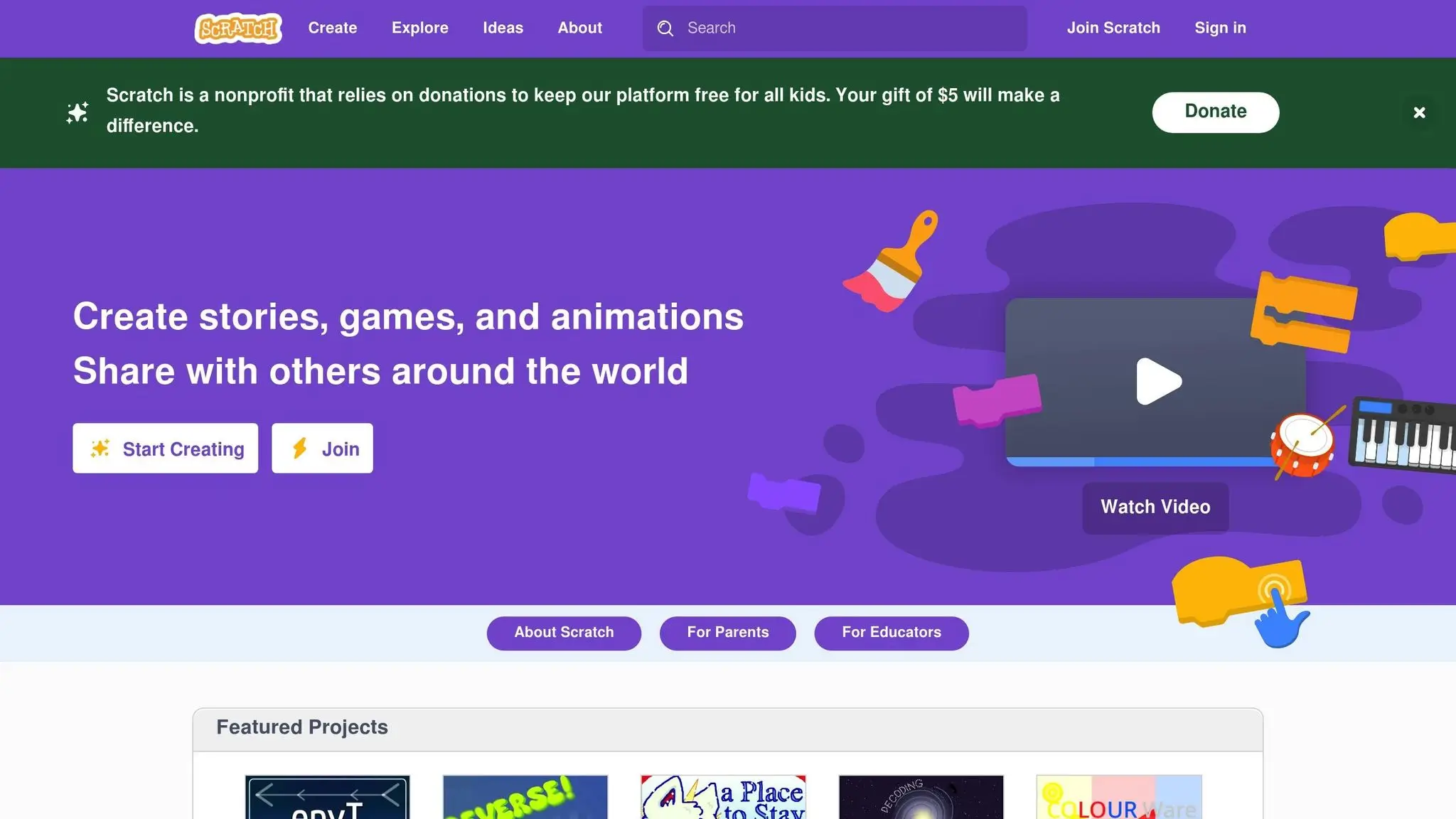
MIT Scratch takes the foundations laid by Scratch Jr. and elevates them into a more advanced environment for creating games, animations, and stories. This free, web-based platform is designed to keep coding accessible for beginners while offering more robust tools for creativity and learning.
Using a drag-and-drop block system, MIT Scratch eliminates the frustration of syntax errors, allowing students to focus on learning core programming concepts. By providing instant visual feedback, the platform helps learners grasp cause-and-effect relationships in coding. Here’s how it stands out in terms of age range, learning styles, and accessibility.
Age Range Suitability
MIT Scratch is a fantastic fit for homeschoolers aged 6 to 14, making it suitable for a wide range of skill levels. Younger children in grades 1–3 can start with simple animations and storytelling, while older kids can dive into more intricate projects. This flexibility makes it a great choice for families with children at different stages of learning.
Programming Concepts Introduced
Through its block-based system, MIT Scratch teaches key programming concepts like sequencing, loops, conditionals, and variables. Students can experiment with game development, storytelling, and even digital art. For those ready to explore further, advanced projects can touch on beginner AI concepts, showing how games can adapt to player actions.
Learning Style (Block-based/Text-based/Hybrid)
The platform’s visual, block-based design is perfect for visual learners who benefit from seeing programming concepts as interlocking pieces. This approach encourages hands-on experimentation, allowing students to develop logical thinking skills while exploring their creativity through game and animation design.
Platform Availability
MIT Scratch operates directly in web browsers, making it accessible on Windows, Mac, and Chromebooks without any need for installation. This browser-based setup is especially convenient for homeschooling families who might switch between devices during the day. Additionally, the platform supports self-paced learning, letting students revisit lessons and progress at their own speed.
Next, we’ll look at tools that offer even more advanced options for game development.
3. Tynker
Tynker is a coding platform designed for homeschool beginners, offering an interactive way to learn programming. It starts with visual, block-based coding, which is perfect for younger learners or those new to coding, and gradually transitions to more advanced concepts. This step-by-step approach helps students build a strong understanding of coding fundamentals while keeping the process engaging.
While Tynker doesn’t specify exact age ranges or list every feature, its adaptable structure allows learners to progress at their own speed, making it a great option for homeschool settings. It acts as a stepping stone, guiding users from simple visual coding to more advanced programming environments.
Next, we’ll take a look at Construct 3, which builds on these foundational skills with a broader set of tools.
4. Construct 3
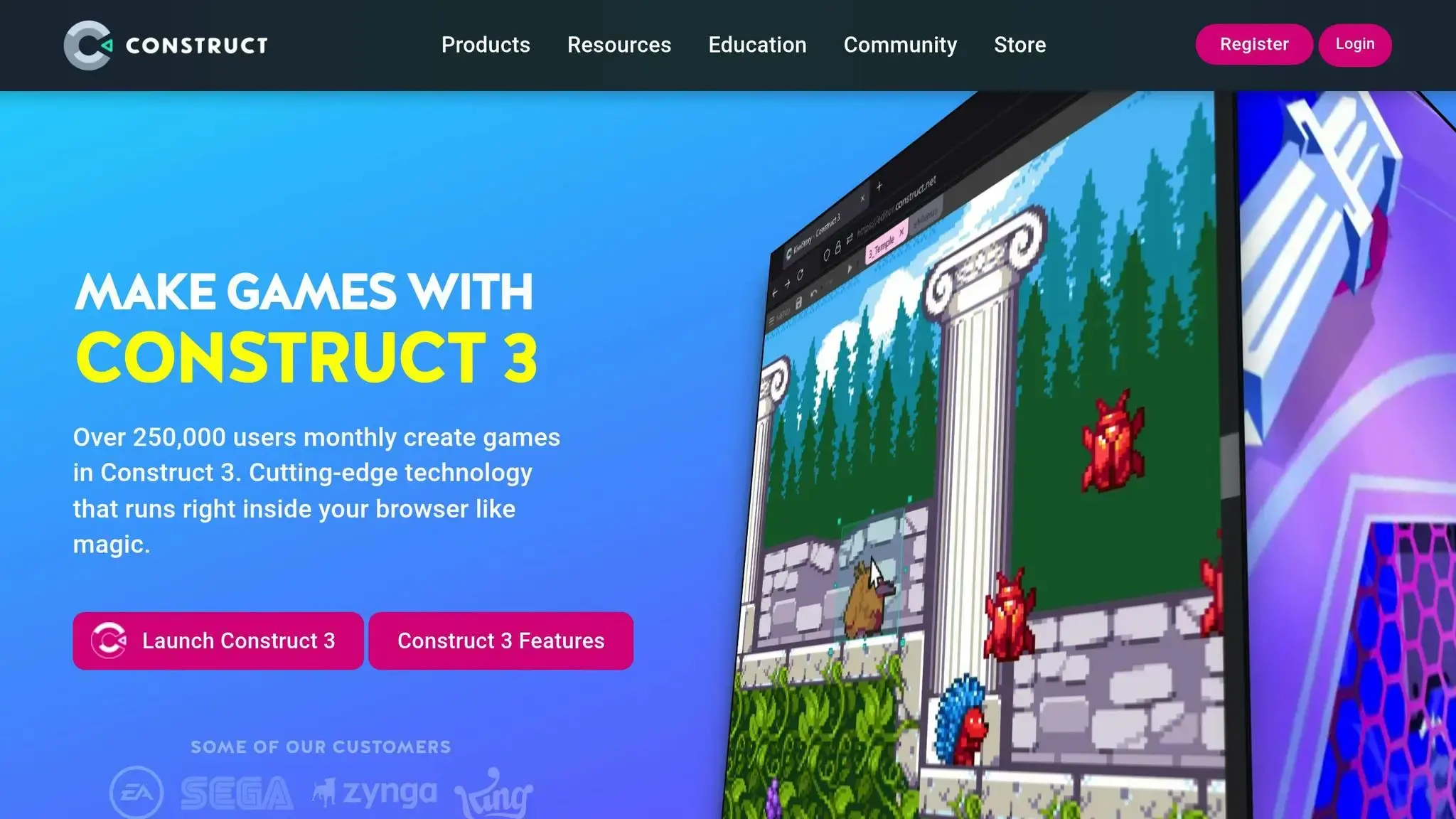
Construct 3 builds on the idea of simplifying game development by offering a visual scripting environment tailored for 2D game creation. Unlike traditional coding, it relies heavily on visual tools, making it a great middle ground between block-based platforms and more advanced development tools.
At the heart of Construct 3 is its event-based system, which uses “if this, then that” logic to create game mechanics. For instance, you can set up rules like, “If the player presses the spacebar, then the character jumps.” This hands-on approach introduces students to programming fundamentals such as conditionals, loops, and variables, all within an intuitive, visual framework.
Learning Style (Block-based/Text-based/Hybrid)
Construct 3 operates as a hybrid system, striking a balance between visual simplicity and logical clarity. Instead of dragging blocks like Scratch, students use event sheets filled with plain-English commands. This format helps them grasp cause-and-effect relationships in programming while encouraging logical thinking.
The clear visual layout not only makes game logic easier to follow but also simplifies debugging. Students can quickly see how various game elements interact, making troubleshooting less daunting.
Platform Availability
Construct 3 is entirely browser-based, meaning students can access their projects from any computer with an internet connection. Whether they’re using Windows, Mac, or a Chromebook, they can dive into their work without needing to install additional software. Plus, the platform includes a mobile preview feature, so students can test their games on tablets or other devices.
Once a game is complete, Construct 3 offers versatile export options. Games can be published to web browsers, mobile app stores, or even desktop platforms, giving students a real sense of accomplishment when their creations come to life.
Programming Languages/Concepts Taught
While Construct 3 doesn’t teach a specific programming language, it introduces critical game development concepts that are transferable to other platforms. Students learn about sprites, animations, physics, collision detection, and game states – all through hands-on projects. These lessons provide a solid foundation for tackling more advanced coding environments.
The platform also integrates math principles seamlessly into game design. Students work with coordinates to position objects, use variables to track scores and health, and apply basic physics to create realistic movements and interactions. This natural application of math makes learning feel relevant and engaging.
Construct 3 is an ideal stepping stone for students aiming to move into more complex tools like Unity. The concepts they master here – like game logic, physics, and animations – remain consistent across many game development platforms, easing the transition into code-heavy environments.
5. GameMaker Studio
GameMaker Studio takes learners beyond the basics, providing a powerful platform to tackle more complex aspects of game development. While it does come with a steeper learning curve, it’s a fantastic choice for homeschoolers looking to elevate their skills and dive deeper into the world of game creation.
Up next, we’ll look at another professional tool that broadens game development possibilities even further.
6. Unity
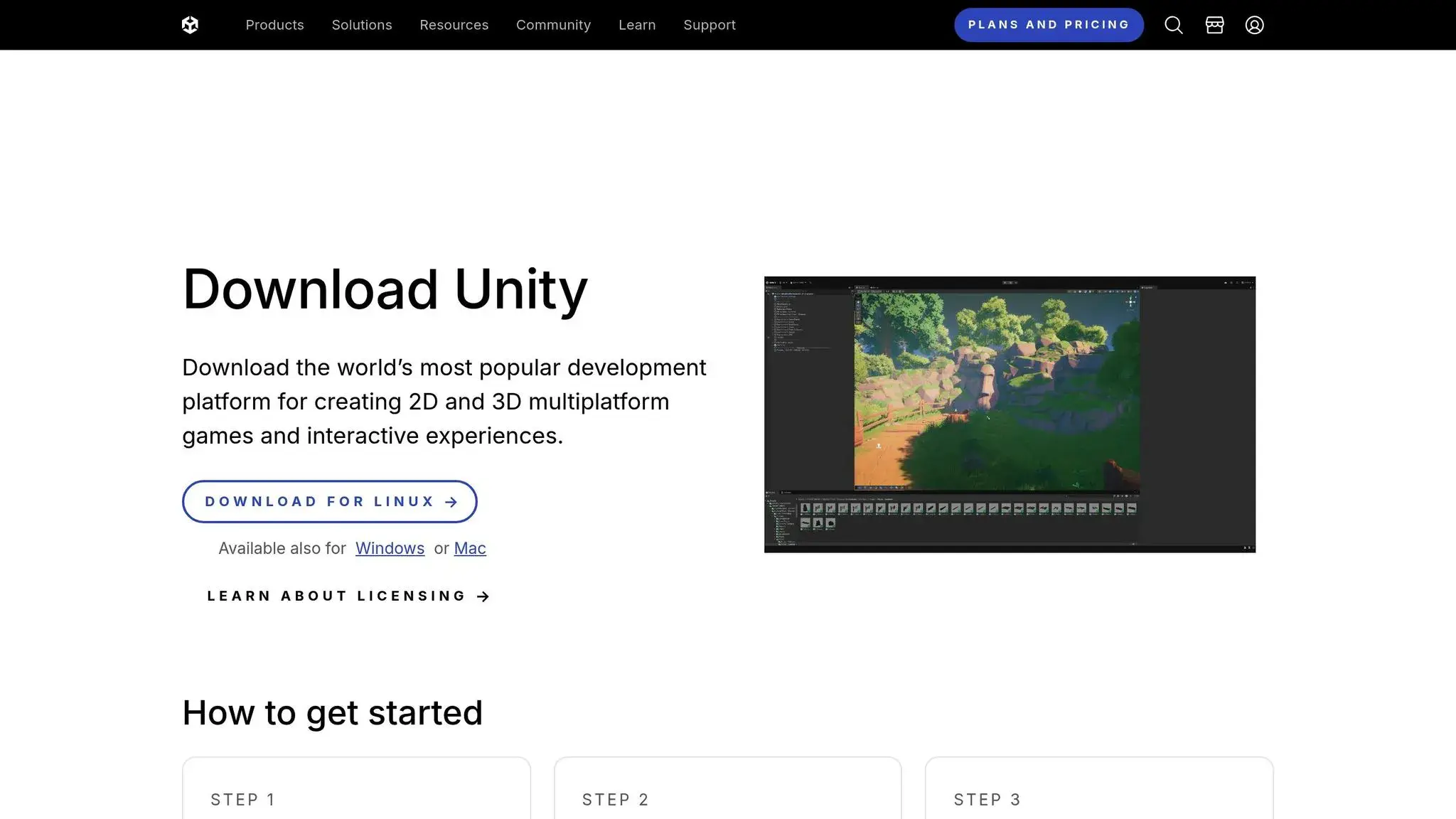
Unity is a powerful game development tool widely used in the industry, making it a fantastic option for advanced homeschool projects. It’s particularly appealing to teens eager to take on more sophisticated game development challenges.
While Unity requires a bit of a learning curve, it opens the door to creating 3D games, mobile apps, and even virtual reality experiences. The platform stands out for its extensive documentation, detailed tutorials, and an active community of developers who share tips, tricks, and resources.
Age Range Suitability
Unity is best suited for homeschoolers aged 12 and up who have some basic programming knowledge. It’s not ideal for absolute beginners, but it’s an excellent next step for students ready to move beyond simpler tools. Though its complexity might feel daunting at first, motivated teens often excel with Unity’s professional-level features.
Programming Languages/Concepts Taught
Unity uses C# as its primary scripting language. It focuses on game development while also teaching creative skills, giving learners a strong foundation in both technical coding and design principles.
Learning Style
Unity combines text-based coding with visual scene building, allowing students to script in C# while designing visually rich environments. This hybrid approach bridges the gap between coding and design, letting learners see the immediate impact of their programming efforts.
Platform Availability
Unity is compatible with Windows, Mac, and Linux. Games created with Unity can be published on a variety of platforms, including iOS, Android, major gaming consoles, and web browsers. The Unity Personal edition is free for educational purposes and small projects, making it accessible for homeschooling families. This allows students to experiment and grow their skills without any upfront costs.
From here, you might want to check out CodaKid for beginner-friendly game development tools that can complement Unity’s advanced capabilities.
7. CodaKid
CodaKid is an online coding and AI academy tailored for kids and teens, making it a fantastic resource for homeschooling families interested in game development. With a library of over 85 courses, CodaKid stands out by teaching professional programming languages and tools rather than simplified versions, giving students a head start in real-world coding.
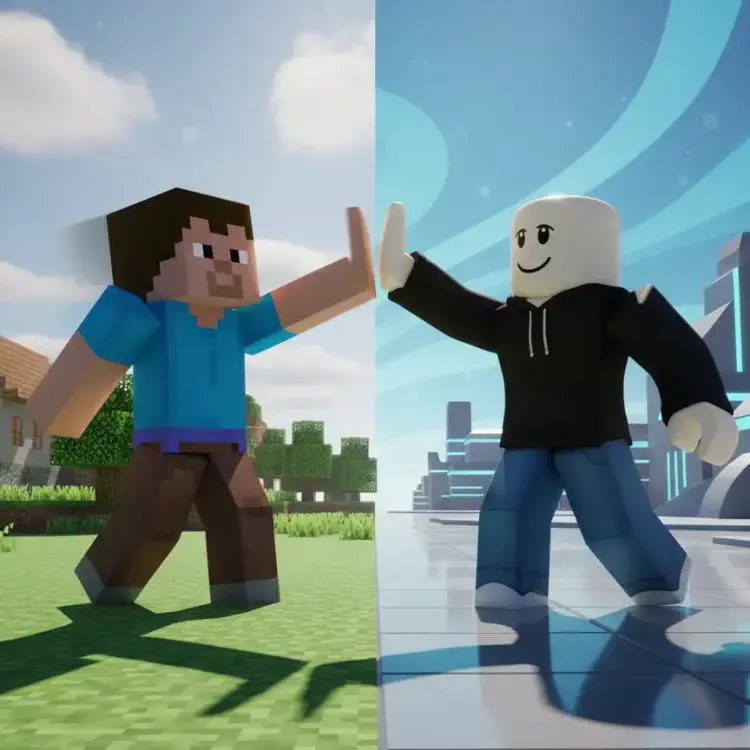
The platform boasts a 4.9/5 rating from more than 350 reviews. What makes CodaKid unique is its focus on teaching game development through popular platforms like Minecraft modding, Roblox game creation, and professional-grade tools such as Unity and Unreal Engine.
“This has been a great addition to our home school curriculum! My son loves spending time in the program and even jumps back in after school when he’s finished his other work. The response to help requests is always immediate and they do a great job finding and explaining the issues he may be having.”
- Christy Lynn, parent
Age Range Suitability
CodaKid is designed to grow with students as they advance through different skill levels. Its courses cater to ages 6 through the teen years, with age-appropriate topics structured to build knowledge gradually:
- Ages 6+: Introductory courses using JavaScript and Scratch.
- Ages 8+: More advanced subjects like Minecraft and Roblox game development.
- Ages 9+: AI courses for those interested in exploring cutting-edge technology.
- Ages 10+: Python programming, a core skill in modern coding.
- Ages 12+: Professional game engines such as Unity and Unreal Engine.
This progression ensures students can continuously challenge themselves and expand their coding expertise over time.
Programming Languages and Concepts
CodaKid’s curriculum provides a solid foundation in professional programming languages like Python, JavaScript, and Java, specifically for Minecraft modding. Students gain hands-on experience by creating real games and software using industry-standard tools. The platform covers a range of game development concepts, including:
- Minecraft Modding
- Roblox Game Development
- Unity and Unreal Engine
In addition to game development, students can explore Artificial Intelligence and Web Development, offering a well-rounded introduction to modern programming skills.
Learning Style
CodaKid caters to different learning preferences with a flexible approach. It combines block-based coding through Scratch with text-based programming languages, giving students options that align with their skill levels and interests. Families can choose from:
- Self-paced video courses with unlimited help desk support.
- Private 1:1 lessons, using a Socratic teaching method to guide students through challenges.
- Virtual camps, which offer interactive group learning and project-based activities.
This versatility makes CodaKid a great fit for homeschooling families, accommodating various schedules and learning styles.
Platform Availability
CodaKid is accessible from any browser on Windows, Mac, and more, ensuring ease of use without requiring special hardware or software. Pricing starts at $29/month for unlimited courses, while private lessons are available for $249/month. Virtual camps provide another option for those seeking intensive, hands-on learning during school breaks.
Tool Comparison Chart
Finding the right game development tool for your homeschooler can feel overwhelming, but this comparison chart simplifies the process. It outlines the key features of seven popular tools, helping you choose based on your child’s age, learning style, and your family’s budget.
| Tool | Age Range | Programming Languages | Learning Style | Platform | Pricing |
|---|---|---|---|---|---|
| Scratch Jr. | 5–7 years | Visual blocks only | Drag-and-drop blocks | iPad, Android tablets, Chromebook | Free |
| MIT Scratch | 8–16 years | Visual blocks, intro to coding concepts | Block-based programming | Web browser (any device) | Free |
| Tynker | 5–18 years | Visual blocks, Python, JavaScript | Block-based transitioning to text | Web browser, mobile apps | Free tier, premium $7.50–$20/month |
| Construct 3 | 10+ years | Visual scripting, JavaScript | Event-based visual programming | Web browser | Free tier, $4.99–$39.99/month |
| GameMaker Studio | 12+ years | GML (GameMaker Language), visual scripting | Hybrid visual and code | Windows, Mac | Free tier, $4.99–$99.99/month |
| Unity | 14+ years | C#, JavaScript | Professional text-based coding | Windows, Mac, Linux | Free for students, $185/month for pro |
| CodaKid | 6–18 years | Python, JavaScript, Java, Scratch | Self-paced videos, 1:1 lessons, camps | Web browser (any device) | $29/month, private lessons $249/month |
Game Development Tools
For younger kids (ages 5–8), Scratch Jr. and MIT Scratch are fantastic starting points, offering free and engaging ways to explore coding through visual blocks. As children grow, tools like Tynker and Construct 3 provide a smooth transition from block-based programming to text-based coding. For teens seeking advanced skills, Unity and CodaKid offer professional-level experiences, with Unity being free for students and CodaKid including options for personalized lessons.
Budget-conscious families will appreciate that Scratch Jr., MIT Scratch, and the free tiers of Tynker and Construct 3 allow beginners to dive in without a financial commitment. Meanwhile, CodaKid’s 14-day free trial offers a chance to explore its $29/month program before committing.
This chart is your guide to matching your child’s age, interests, and learning pace with the tool that will best support their coding journey. Whether they’re just starting or ready for more advanced challenges, there’s a tool here to spark their creativity.
Conclusion
Finding the right game development tool for your homeschooler doesn’t have to be overwhelming. The trick is to align the tool with your child’s current skills and interests while keeping an eye on how they can grow with it.
For younger kids (ages 5–8), start with free, beginner-friendly platforms like Scratch Jr. or MIT Scratch. These block-based tools let children dive into programming concepts through play, creating simple games and animations without feeling intimidated.
Kids aged 9–12 often benefit from tools that bridge the gap between visual and text-based coding. Platforms like Tynker and Construct 3 do this well, showing how visual blocks connect to actual code. These tools’ event-based programming style resonates with this age group, helping them grasp more advanced concepts while staying engaged.
Teens ready to take on serious game development might explore Unity, known for its professional-grade features, or CodaKid, which offers a structured curriculum covering programming languages like Python, JavaScript, and Java. CodaKid’s self-paced courses, priced at $29/month, or its personalized 1:1 lessons provide the kind of tailored support many homeschooling families appreciate.
Learning Style
It’s also important to consider your child’s learning style. Some kids thrive with self-guided video tutorials, while others need the structure and accountability of live instruction. Budget is another factor – free tiers might work for now, or you may decide to invest in premium features for more advanced tools.
Homeschooling gives you the flexibility to start small and grow naturally. Many young developers begin with platforms like Scratch and eventually transition to professional tools such as Unity. There’s no need to rush – let your child’s curiosity and progress set the pace as they move from visual blocks to real-world programming.
Lastly, choose a platform that offers solid support for both you and your child. Whether it’s detailed help guides, live chat, or access to instructors, having reliable assistance can make the learning journey smoother and more enjoyable for everyone.
FAQs
What should I look for in a game development tool for my homeschooler?
When picking a game development tool for your homeschooler, think about their age, hobbies, and preferred learning style. Opt for platforms that are easy to use, fun to explore, and provide clear, kid-friendly instructions.
Focus on tools that offer an intuitive design, interactive lessons, and adaptable learning paths. It’s also worth prioritizing resources that spark creativity and encourage problem-solving, while ensuring they include parental control features. Checking reviews or getting recommendations from other homeschooling parents can also guide you toward the best option.
How can using game development tools boost my child’s math and writing skills?
Game development tools offer a unique way to boost your child’s math and writing abilities while keeping them entertained. When kids code games, they naturally apply math concepts like geometry, algebra, and logical reasoning to build mechanics and tackle challenges. This hands-on approach makes math feel more practical and easier to connect with real-world scenarios.
On top of that, designing games fuels creativity and sharpens writing skills. Whether they’re crafting engaging storylines, scripting character dialogue, or writing clear instructions, kids learn to communicate their ideas effectively – all while letting their imaginations run wild.
Do homeschoolers need any prior knowledge to start using these beginner-friendly game development tools?
Getting started with game development doesn’t require any prior experience, making it an exciting option for homeschoolers. Many tools are specifically created for kids and teens, featuring user-friendly interfaces and step-by-step tutorials that simplify the process.
For those brand new to coding or designing games, plenty of platforms offer helpful resources like video lessons, hands-on exercises, and ready-made project examples. These features make learning both engaging and approachable.