
Kids today are online more than ever, but the internet comes with risks like identity theft, scams, and cyberbullying. Teaching children how to browse safely helps protect their personal information and gives them confidence to navigate the digital world. Here’s a quick summary of the 10 safe browsing tips every parent should know:
- Create Strong Passwords: Use at least 12 characters, mix letters, numbers, and symbols, and avoid reusing passwords.
- Never Share Personal Information: Keep details like addresses, school names, and birthdays private.
- Avoid Talking to Strangers Online: Block and report unknown users, especially in gaming chats.
- Don’t Click Unknown Links or Attachments: Always check URLs and avoid suspicious messages.
- Recognize Secure Websites: Look for “https://” and the padlock icon before entering sensitive info.
- Ask an Adult Before Downloading: Downloads can hide malware or inappropriate content.
- Be Careful with Photos and Videos: Avoid sharing anything online you wouldn’t want public.
- Report Uncomfortable Situations: Encourage kids to speak up if they encounter anything upsetting.
- Use Devices in Open Areas: Keep screens visible to promote safer habits.
- Understand Safe Search Practices: Enable SafeSearch filters to block explicit content.
The goal is simple: help kids stay safe while exploring the internet. Open conversations and active involvement are key to building trust and guiding their online habits.
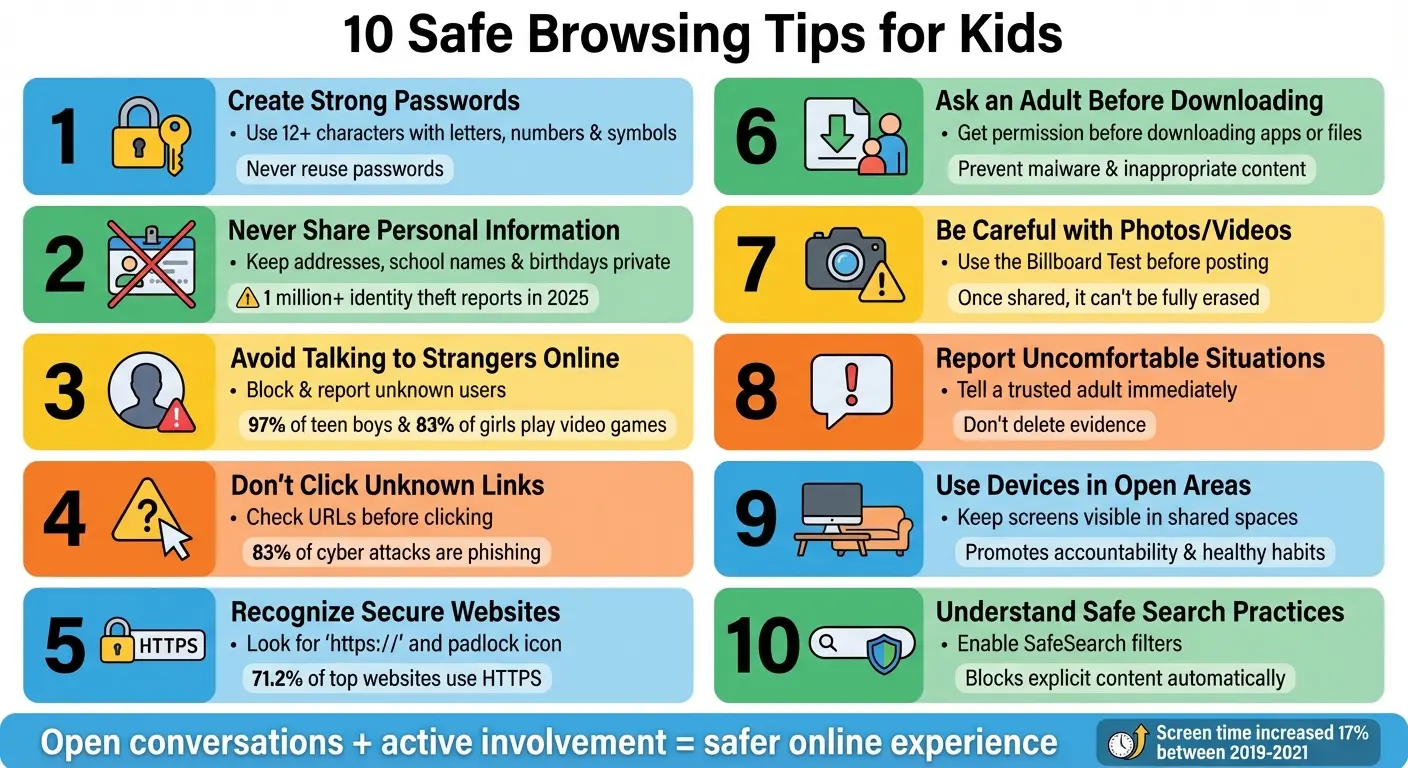
10 Essential Safe Browsing Tips for Kids – Visual Guide
Table of Contents
Is Coding Good for Kids?
1. Create Strong Passwords
Passwords are the first line of defense for protecting your child’s personal information. Yet, many people still rely on weak options like “123456”, “password”, or “12345” – the three most common passwords in the U.S.. It’s important for kids to understand that weak passwords can jeopardize their email, gaming accounts, schoolwork, and even family data.
So, what makes a password strong? It should have at least 12 characters. While an 8-character password can be cracked quickly, a 16-character one offers significantly more security. Strong passwords also combine uppercase and lowercase letters, numbers, and special characters such as @, #, or $.
One of the most common mistakes is reusing passwords across multiple accounts. Doing so makes it easy for hackers to access everything if one account is compromised. Encourage your child to create a unique password for each account.
Also, steer clear of using personal details like nicknames, birthdays, phone numbers, or school names in passwords. Hackers often scour social media profiles for this type of information. Instead, teach kids to use the mnemonic method. For example, take a memorable sentence like “2007: Steve Jobs sold iPhone 1!” and turn it into something like “2007:SJsiP1!” This approach creates a complex password that’s still easy to recall.
To make managing passwords easier, consider using a password manager. These tools store all passwords securely, so your child only needs to remember one master password. Additionally, enable multi-factor authentication (MFA) wherever possible for an added layer of security.
Finally, always emphasize the importance of safeguarding personal information online.
2. Never Share Personal Information
Keeping personal details private online is just as important as using strong passwords to protect your accounts. While the internet brings countless opportunities, sharing too much information can lead to serious risks. Details like your full name, address, phone number, school name, date of birth, Social Security number, or even seemingly harmless tidbits about your life should always remain confidential. These pieces of information can be pieced together to pinpoint your real-world location.
One major concern is identity theft. Criminals often target children because their credit histories are usually clean, making their identities just as appealing as those of adults. As Emma McGowan, a privacy advocate at Norton, points out:
“A child’s identity can have as much value as an adult’s identity.”
The damage caused by identity theft might not surface until years later – when applying for a job, renting an apartment, or securing credit. In 2025 alone, over 1 million people reported identity theft to the FTC. Even large companies sometimes fail to adequately protect young users’ data, which highlights the importance of staying cautious.
Physical Safety
Beyond identity theft, sharing personal details like your address or school name can jeopardize your physical safety. Stalkers or online predators might use this information to locate you. Additionally, your information could be exploited in harmful ways, such as doxxing (the public release of private details to incite harassment) or swatting (hoax emergency calls that send law enforcement to your home).
It’s essential to remember that anything shared online can become public in an instant. Malwarebytes offers a critical reminder:
“Anything you share privately online or via text – can become public very unexpectedly and very quickly.”
Photos, videos, and other personal details contribute to a digital footprint that could impact your future reputation, education, or career. Before posting, consider the “Billboard Test”: would you be okay with that photo or information displayed on a massive billboard in the middle of your town?
To reduce these risks, follow these key privacy tips: Use an anonymous screen name that doesn’t reveal your real name, age, or phone number. Turn off location tracking and GPS tagging on your smartphone and social media apps. Set your social media profiles to private so only trusted friends and family can view your posts. And always check with a parent or guardian before filling out online forms, creating profiles, or sharing personal information – even if it seems necessary for a game or school project. This is especially important when exploring coding for kids platforms or online learning communities.
3. Avoid Talking to Strangers Online
The internet’s anonymity makes it easy for predators to disguise themselves as peers. They often use grooming tactics – like giving compliments, pretending to share interests, or claiming to be the same age – to gain trust and manipulate children into revealing personal information or even meeting in person. This danger is especially present in spaces kids frequent online.
Take game programming for kids platforms, for instance, are particularly risky. Around 97% of teenage boys and 83% of girls in the U.S. play video games, making these platforms a common place for kids to encounter strangers. Popular games like Fortnite, Roblox, and Call of Duty come with default voice and text chat features that connect players with strangers worldwide. Tony Costa, a parent, shares his concern:
“I have blocked their devices from adult content, but that doesn’t mean predators can’t try to chat with them online in the games.”
Social media, messaging apps, and even AI chatbots pose similar risks. For example, nearly 75% of teens reported interacting with an AI companion in the past year, and 33% said they’d prefer talking to AI over humans for serious discussions. While AI chatbots aren’t predators, they can sometimes provide misleading information or reinforce harmful ideas.
The best approach is simple: kids should not engage with strangers online. Teach them to block and report anyone who sends friend requests or messages asking for personal details, photos, or an offline meeting. Anne Collier, Executive Director of the Net Safety Collaborative, offers this reassurance:
“Kids are a lot smarter than they’re given credit for. If something’s creepy, they know to block and report the person responsible for it.”
Encourage kids to keep gaming chats focused solely on the game and to immediately flag any personal questions. If someone online asks for personal information, photos, or suggests meeting in person, kids should alert a trusted adult without hesitation.
4. Don’t Click Unknown Links or Attachments
One careless click can lead to serious trouble. Phishing remains the most common cyber threat, responsible for 83% of cyber attacks. These scams often trick kids into giving away passwords or personal information by sending them to fake websites that look like legitimate ones.
Attachments can be just as risky. Malwarebytes cautions:
“Attachments are a common infection vector for viruses and malware like Trojans. Never open attachments from unknown senders.”
Opening such files can install ransomware, delete important data, or spread malware across your entire home network. It’s vital to recognize these deceptive tactics, which extend far beyond just suspicious attachments.
Scammers are constantly refining their methods. They craft messages that appear to come from friends, popular games, or trusted brands, often changing just a single letter in an email address to fool recipients. Google highlights another key tactic:
“Scammers use emotion to try to get you to act without thinking.”
This growing sophistication makes it even more important to carefully examine links before clicking.
Teach kids to hover over links to check the actual URL. If it looks odd or doesn’t match the description, it’s better to avoid clicking. Be on the lookout for urgent messages or offers that sound “too good to be true” – these are classic red flags. If a friend sends something unusual, confirm its legitimacy through another method like a text or call. And if a suspicious link is accidentally clicked, disconnect from the internet immediately.
5. Recognize Secure Websites
It’s crucial to teach kids how to spot secure websites, especially before they share sensitive information or shop online.
The easiest way to check? Look at the URL in the browser’s address bar. Secure websites start with “https://” – the “s” stands for encryption, which protects your data. You’ll also see a padlock icon, signaling a secure connection.
“HTTPS prevents websites from having their information broadcast in a way that’s easily viewed by anyone snooping on the network.” – Cloudflare
Modern browsers like Google Chrome and Firefox make it even easier by flagging non-HTTPS sites with a “Not Secure” warning. If kids encounter this warning, they should leave the site immediately and avoid entering any sensitive information. This is especially important on public Wi-Fi, where unencrypted data is more vulnerable to interception.
But here’s the catch: encryption doesn’t always mean the site is trustworthy. Around 83% of phishing pages now use valid SSL certificates, so scammers can create fake websites that look secure. Encourage kids to double-check the URL for spelling errors – scammers often rely on typosquatting (e.g., “exaample.com”) to trick users. They can also click the padlock icon to view the site’s security certificate and verify the owner’s identity.
When shopping online, remind kids to only make purchases on websites with HTTPS. This protects sensitive payment details, like credit card information, during checkout. As of June 2025, 71.2% of the internet’s 150,000 most popular websites use HTTPS.
6. Ask an Adult Before Downloading
When it comes to downloading apps, games, or files, it’s always smart to get a parent’s input first. Downloads can be risky, often carrying viruses or malware like Trojans, ransomware, or spyware that can harm devices and compromise personal data. Some websites even attempt drive-by downloads, where software installs itself without your knowledge or consent.
Beyond technical risks, some apps may include inappropriate content or hidden dangers. For example, apps like “Calculator#” might seem innocent but can conceal content unsuitable for younger users. Parents can turn to resources like Common Sense Media to check reviews and ensure the app is appropriate for the intended age group.
Another concern with unvetted downloads is the potential for unauthorized in-app purchases or phishing scams. Parental controls, such as Google Family Link or Apple Family Sharing, can help by requiring approval before any downloads are made.
Encouraging kids to ask for permission before downloading creates a vital layer of protection for everyone. Parents can review the source, check app permissions, and scan files with antivirus software to ensure they’re safe. These simple steps help secure devices and keep kids safe while navigating the digital world.
7. Be Careful with Photos and Videos
Once photos or videos are shared online, they can never be fully erased. Even if a child deletes a photo from their account, it might already have been saved, screenshotted, or reshared by others. UNICEF puts it plainly:
“Once you share a message, photo or video, it’s hard to control what happens to it. Taking it down is nearly impossible”.
Every image posted online leaves a permanent digital trail, which could impact a child’s future. Old photos might resurface during crucial moments like college applications or job interviews, potentially leading to embarrassment or misunderstandings. Beyond reputation, shared media can unintentionally disclose sensitive information – such as school names, home addresses, or daily routines – that could attract online predators or lead to identity theft.
To reduce these risks, encourage kids to use the “Billboard Test” before posting: Would you be okay with this photo or video being displayed on a public billboard?. If the answer is no, it’s better not to share. Additionally, disable geolocation on camera apps to prevent location data from being attached to photos. Always check the background of images for private details like house numbers, logos, or personal documents before snapping or sharing.
Set social media profiles to “private” to limit visibility and keep browsing habits secure. Teach kids to ask permission before sharing photos or videos that include others, and always involve a trusted adult for guidance on what’s appropriate to post.
Thinking critically about what’s shared online helps protect both privacy and overall safety.
8. Report Uncomfortable Situations
Speaking up about unsettling online experiences is a crucial step in staying safe. If something doesn’t feel right, kids should immediately share their concerns with a parent, teacher, or another trusted adult. As KidsHealth puts it:
“Always tell a parent or other trusted adult about any communication or conversation that was scary or hurtful.”
If a conversation online becomes threatening or upsetting, stop engaging right away. Log off or disconnect, and let a trusted adult know what happened. Don’t delete any troubling messages, emails, or posts – keeping these can serve as important evidence for adults to review and address the situation effectively.
After informing an adult and preserving any necessary evidence, take proactive steps to protect your kids online. Use features like “block” and “report” on social media platforms to cut off contact with the individual causing harm. For more serious concerns, such as exploitation or predatory behavior, families can turn to resources like the CyberTipline (1-800-843-5678), operated by the National Center for Missing and Exploited Children.
Sometimes, kids may hesitate to report these situations because they fear being punished or losing access to their devices. Parents can help by reassuring their children that reporting is the right thing to do and won’t lead to punishment. The SC Internet Crimes Against Children Task Force also stresses:
“Attempting to act like it never happened can sometimes make you look guilty!”
Creating a supportive, judgment-free environment at home encourages kids to openly discuss online issues, helping to address problems before they escalate.
9. Use Devices in Open Areas
Placing devices in shared spaces like the living room or kitchen can go a long way in promoting safe online habits. When screens are visible to everyone, it becomes easier to monitor activity without being intrusive. As Olga Drnek from Avast points out:
“Keeping the family computer in a communal area allows you to more easily see the websites they visit.”
This simple practice naturally discourages children from visiting inappropriate websites or engaging in risky online behavior. When screens are out in the open, it creates a layer of accountability. Emma McGowan, Managing Editor at Norton, supports this idea:
“Keep things transparent by: Placing desktop computers in a common area. Discouraging kids from playing with tablets in their rooms.”
Beyond safety, using devices in shared areas also helps maintain healthy routines. Screens in bedrooms can disrupt sleep patterns and lead to unsupervised late-night browsing. By making bedrooms no-device zones, families can protect sleep quality and reduce exposure to potentially harmful content.
This approach encourages transparency and builds trust within the household. Parents can step in quickly if something concerning happens, and internet use becomes a shared family activity rather than a private one. By also using their own devices in communal spaces, parents set an example of healthy digital habits, reinforcing the idea that these rules apply to everyone in the home.
10. Understand Safe Search Practices
It’s important to teach kids how to use safe search tools to help block explicit content online. SafeSearch filters are designed to detect and filter out harmful material, such as pornography and graphic violence, from search results. As Google explains:
“SafeSearch is designed to detect explicit content like pornography and graphic violence on Google Search.”
Most major search engines offer built-in filtering options. For instance, Google SafeSearch provides three filtering levels, with the default setting automatically set to “Filter” for users under 18. Similarly, Microsoft Edge‘s Kids Mode enforces Bing SafeSearch to operate in “Strict” mode.
To enable SafeSearch on Google, visit www.google.com/safesearch on a computer, or go to Settings > SafeSearch in the Google app on mobile devices. For Microsoft Edge, activate Kids Mode to ensure strict filtering is applied.
To make SafeSearch even more secure, lock the settings using the lock icon so kids can’t disable them. However, remember that SafeSearch only works on the specific search engine where it’s enabled, so you’ll need to adjust settings on each platform your child uses.
If explicit content still manages to slip through, report it directly to the search engine provider. While no filter is flawless, using SafeSearch alongside other internet safety tips adds an extra layer of protection, helping to create a safer online environment for your children.
Conclusion (10 Safe Browsing Tips)
These 10 safe browsing tips lay a solid groundwork for protecting your children online, but no set of rules can replace open, ongoing conversations about their digital lives. As Olga Drnek, a published author at Avast, aptly points out:
“No amount of internet safety rules for kids can replace your most reliable tool for keeping kids safe online – talking to your child”.
While setting boundaries is important, your active involvement is even more critical. Kids, even the tech-savvy ones, often overlook the warning signs of predatory behavior or underestimate long-term risks. With screen time rising by 17% between 2019 and 2021, the stakes are higher than ever. Dr. Kate Eshleman, a child psychologist at Cleveland Clinic, underscores this responsibility:
“As parents, part of our job is to educate ourselves about what’s out there and what’s available to our kids”.
Trust is the cornerstone of online safety. When children know you’re monitoring their activity openly – not sneaking behind their backs – they’re more likely to approach you if something feels off. Dr. Eshleman cautions:
“Secretly following their internet activity will diminish their trust. And building and maintaining a trusting relationship between parents and children is important to raising healthy kids”.
By being a supportive advisor rather than an overbearing watchdog, you can stay involved in a way that feels natural and respectful.
To stay proactive, apply the 10 safe browsing tips mentioned earlier and leverage resources like Common Sense Media for app reviews. Regularly connect with other parents, teachers, and healthcare professionals to stay updated on new online trends. Collaborate with your children to create a family media plan, and lead by example – show kindness online, set healthy screen-time boundaries, and practice responsible internet use. If your child shares an uncomfortable online experience, stay calm and listen carefully to ensure they feel safe confiding in you.
Ultimately, these strategies empower you to guide your child’s digital journey with confidence. The internet is deeply woven into their daily lives, from education to social interactions. By staying engaged and asking about their online experiences, you can move from being a rule enforcer to becoming their trusted guide.
FAQs (10 Safe Browsing Tips)
How can I help my child feel comfortable reporting unsafe online experiences?
Create a safe space for kids online with 10 safe browsing tips — from strong passwords to safe search filters. Let them know it’s both smart and responsible to speak up if something online makes them uncomfortable. Encourage them to use a simple phrase like, “I need help with something I saw online,” and role-play different scenarios together, such as dealing with strange messages or inappropriate content.
Reassure them that reporting isn’t just about protecting themselves – it helps keep others safe too. Praise their courage for speaking up, even if it turns out to be a misunderstanding. To reinforce these practices, keep devices in shared spaces, use parental controls to monitor activity, and teach them how to use built-in reporting tools on apps and websites. By making these habits part of everyday life and pairing them with positive experiences – like learning new skills through online safety-focused coding courses – you’ll help them build the confidence to navigate the digital world responsibly.
How can I teach my kids the importance of creating strong passwords?
Make online safety fun with 10 safe browsing tips for kids — from creating strong passwords to building open conversations at home. Start by comparing passwords to keys. Just like you wouldn’t leave your house key out in the open, passwords need to be kept private and hard for others to figure out. Explain that a strong password acts like a sturdy lock, keeping accounts safe from unwanted access. A solid password should be at least 12 characters long, mixing letters, numbers, and symbols, and steering clear of personal details like names or birthdays.
To make it more interactive, help your kids come up with memorable passphrases. These could be a string of unrelated words or even a short, funny sentence. Let them try out their creations with a password-strength tool to see how secure they are. You can also introduce them to the concept of a password manager – a handy tool for safely storing passwords – and make regular password updates a family habit. By turning this into a hands-on and relatable experience, kids are more likely to grasp the importance of staying safe online.
How can I turn on SafeSearch to protect my child online?
To activate SafeSearch and shield your child from explicit content, here’s what you need to do based on their device:
- For Android devices: Open the Google app or Chrome, head to Settings, locate SafeSearch, and switch it on. If your child is signed into a Google Account, this setting will apply across the device.
- For iPhones or iPads: Open the Google app, go to Settings, and toggle SafeSearch to on.
- For computers: Sign in to Google, visit the SafeSearch settings page, choose Filter, and save your changes. This will apply to all searches under that account.
If your child’s account is managed by Google Family Link, SafeSearch may already be locked to the strictest setting. To double-check, run a test search to confirm explicit results are being blocked. Repeat these steps on every device your child uses to ensure they’re consistently protected.